
Margin
Margin
Margin is a free HTML for Kids lesson on CoddyKit. This is lesson 1 of 1. You can read the complete lesson below for free — then practise it hands-on in the browser with a built-in code editor and a 24/7 AI tutor. It is part of the HTML for Kids learning path, and your progress syncs across the web and the CoddyKit app. The HTML for Kids course includes 1 lessons in total.
Introduction
Margin is one of the most important topics in CSS.
Margins are the spaces that we create around the boundaries of an element.
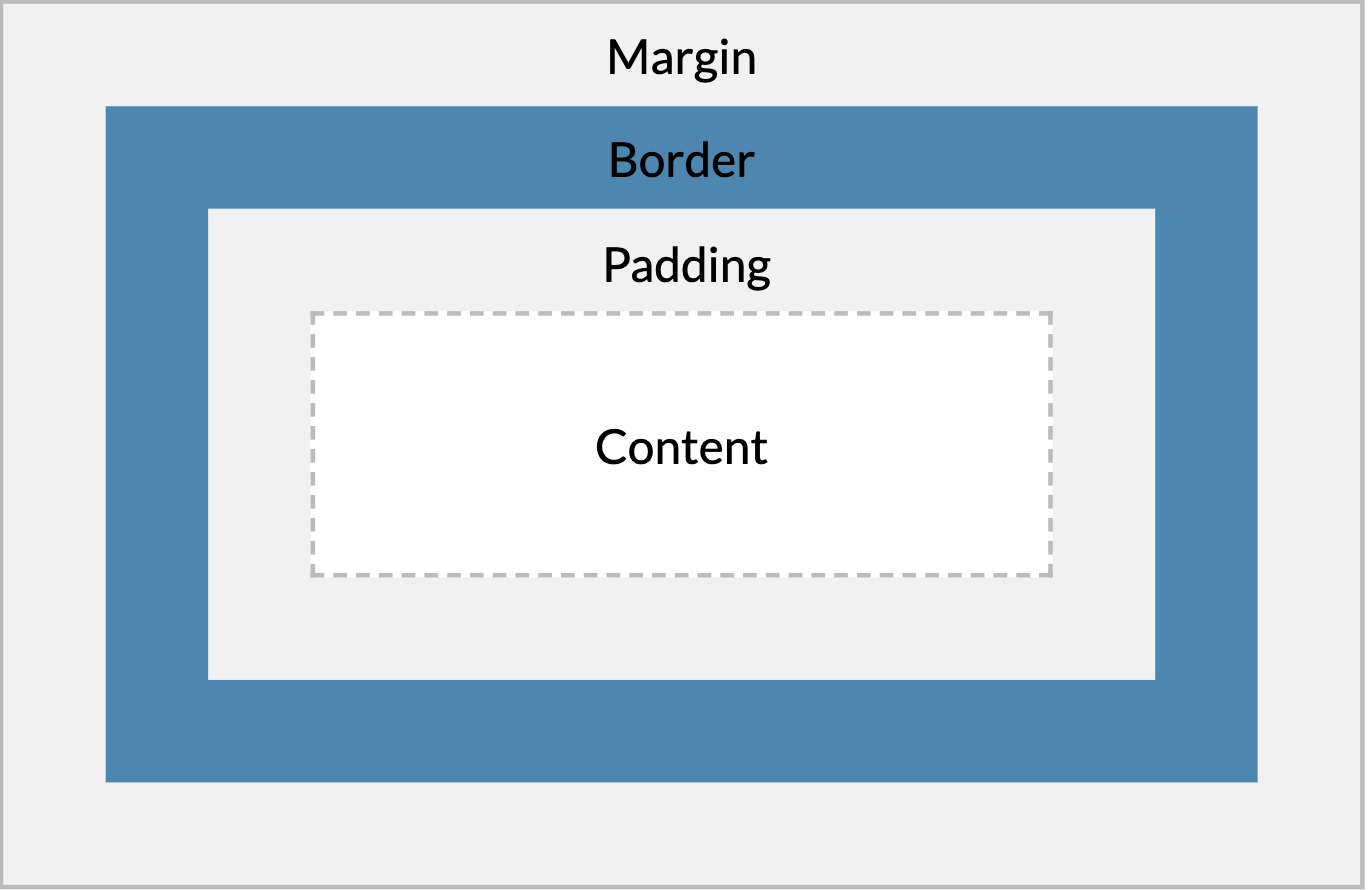
Margin Sides Explained
Regardless of the type of element while creating a margin, we should not think of it as 4-way (top, right, bottom, and left).
<style>
   .box{
      margin-top:10px;
      margin-right:10px;
      margin-bottom:10px;
      margin-left:10px;
      width:100px;
      height:100px;
      background-color: powderblue;
   }
</style>

<div class="box">Box with margin</div>
<div class="box">Box with margin</div>
Warning
As we give a specific value to the margin value, we can also give a percentage value.
Warning
As we give a specific value to the margin value, we can also give a percentage value.
Margin shorthand
In our previous example, we had to write 4 lines of code to margin all aspects of a box.
CSS provides a margin shortcut for us to write shorter code.
After defining the margin property, we can assign our margin values by leaving a space between them, respectively top, right, bottom, and left (i.e. clockwise).
<style>

.box {
  margin: 10px 10px 10px 10px;
  background-color: powderblue;
}
</style>

<div class="box">Box with margin</div>
Warning about negative margin
Margins can take a negative value. The paddings that we will see in the next lesson cannot get a negative value.
margin auto
We will use the auto value of the margin property to center our elements horizontally. Regardless of screen resolution, the screen will be centered horizontally.
Let's assume the screen is 1200px. Our element is 400px. Our element will be centered on the left and right with 400px spaces.
<style>
.box {
  width:200px;
  margin: auto;
  background-color: powderblue;
}
</style>
<div class="box">
     This element will be horizontally
      centered because
       it has margin: auto;
</div>
Congratulations
Congratulations 🎉
In this section, we learned the CSS Margins.
In the next section, we will learn the CSS Paddings.

Learn HTML with an AI tutor — free
Write and run real code in your browser, get instant help from a 24/7 AI tutor, and pick up where you left off on the web or in the app.
- Courses
- 16
- Lessons
- 35
Frequently Asked Questions
Is the “Margin” lesson free?
Yes — the full text of “Margin” is free to read here on the web. To practise it interactively (a built-in code editor and a 24/7 AI tutor) and unlock the rest of the HTML for Kids course, upgrade to CoddyKit PRO. The HTML for Kids course includes 1 lessons in total.
What will I learn in “Margin”?
Margin You practise HTML for Kids with hands-on code you run directly in the browser, and a 24/7 AI tutor answers your questions as you work through the lesson.
Do I need any experience to start HTML for Kids?
No prior experience is required. HTML for Kids on CoddyKit is structured for beginners through advanced learners, so you can start here or from the beginning and move at your own pace. This is lesson 1 of 1.
How long does the “Margin” lesson take?
Most CoddyKit lessons take about 5–10 minutes. Each one is bite-sized and interactive, so you make steady progress and pick up exactly where you left off across the web and the app.
Can I write and run code in this HTML for Kids lesson?
Yes. Every HTML for Kids lesson includes a built-in code editor, so you write and run real code right in your browser and get instant AI feedback — no local setup required.